
A church presentation should make a service easier to follow, not become a distraction. When lyrics appear too late, a Bible passage is displayed incorrectly, or the previous song remains on the screen after the music has ended, the congregation notices immediately.
A well-prepared visual presentation works differently. It supports worship, preaching, announcements, and other parts of the service without drawing attention to the technology or the person operating it.
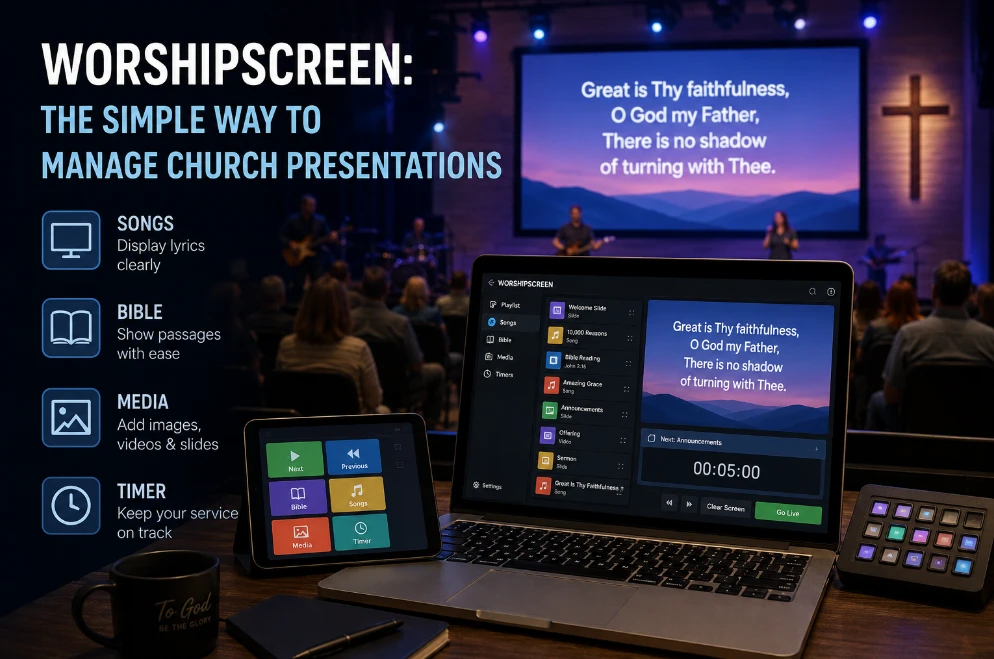
WorshipScreen is designed around this type of workflow. The browser-based platform brings worship lyrics, Bible passages, images, videos, and timers into one working environment. Instead of creating separate presentation files for every service, a media operator can prepare a playlist in advance and manage the visual content from one place.
Another advantage is flexibility. Songs and Scripture passages can be edited or added while a presentation is already running. This is particularly useful when a worship leader changes the order of songs or a pastor unexpectedly refers to another Bible passage.
The most effective way to use the platform is to treat it as a complete workspace for church media rather than simply a tool for displaying lyrics. The following workflow explains how to prepare, organize, test, and operate a service efficiently.
1. Decide How the Main Display Will Be Connected
Before preparing songs and playlists, determine how the presentation will reach the screen seen by the congregation.
The best setup depends on the equipment available in your church. A projector, television, LED wall, or another display can all serve as the presentation output.
Connect a Laptop Through HDMI
One of the simplest approaches is to connect a laptop directly to the projector, television, or LED display with an HDMI cable.
When possible, use an extended desktop rather than mirroring the laptop screen. This creates two separate working areas. The operator can keep the WorshipScreen controls on the laptop while the congregation sees only the presentation output.
Once everything is connected, open the required playlist, select Manage Stream, and then choose Go Live. The presentation opens in a separate browser tab that can be moved to the external display.
This arrangement is especially useful because the operator can navigate songs, Scripture, media, and other controls without exposing the administration interface to the audience.
Use a Television With a Built-In Browser
A television with an internet browser can also be used as the presentation screen.
In this configuration, the presentation can be opened directly on the television while the same account is used from a laptop or another device for control. The TV becomes the output device, while the laptop functions as the control station.
This can be convenient when running a long HDMI cable would be impractical or when the display is positioned far away from the media operator.
Control the Service From a Phone or Tablet
Because WorshipScreen operates through a browser, a smartphone or tablet can also be used for control.
This can be particularly useful for smaller churches where there is no dedicated presentation operator. A worship leader or media volunteer can access the playlist from another part of the room rather than remaining at a computer throughout the service.
Regardless of which configuration you choose, test the connection before people enter the room. A stable display connection is much more important than adding sophisticated visual effects later.
2. Configure the Account Before Building Your First Service
It can be tempting to start adding songs immediately, but several account-level settings affect the appearance of your presentation.
WorshipScreen provides options for interface language and account settings, as well as presentation preferences such as font, text color, alignment, positioning, and default background.
Bible translation is selected when a Scripture passage is added to a playlist. The platform remembers the previously selected translation, which can make preparation faster for recurring services.
Setting these preferences early prevents unnecessary formatting work later.
Choose the Bible Translation You Need
Bible passages can be added to a playlist using the translation selected during the process.
Once a translation has been selected, WorshipScreen remembers that choice for future Scripture additions. This saves time for churches that regularly use the same translation while still allowing the operator to select another version when a particular service requires it.
This flexibility is also useful for multilingual congregations or churches that use different Bible translations depending on the audience.
3. Use Two Languages When Your Congregation Is Multilingual
A bilingual presentation can make a significant difference in an international or multilingual church.
WorshipScreen can display two languages at the same time for both Bible passages and song lyrics. Instead of preparing separate slides for each language, the congregation can see both versions together.
For worship songs, this allows people to follow the original lyrics alongside a translation. During preaching, Scripture can also be displayed in two languages so that people with different language preferences can follow the same passage.
However, bilingual content requires careful formatting. Two languages naturally require more screen space, so keep the layout simple. Avoid excessively long lines, small fonts, or unnecessary decorative elements.
Readability should always take priority over visual complexity.
4. Make Readability the First Design Priority
A background may look impressive on a laptop but become difficult to read on a large screen.
Start with the fundamentals: font size, font style, text color, alignment, and positioning. Then test the presentation from the back of the room.
A useful rule is simple: if someone can read the slide instantly, the design is doing its job.
Decorative elements should support the message rather than compete with it. This becomes even more important during worship, when people should be concentrating on the lyrics instead of trying to decipher the screen.
Prepare a Useful Default Background
A default background is displayed when there is no active presentation content.
Instead of leaving the last lyric or Bible verse on screen during a transition, the operator can return to a neutral visual. A church logo, welcome message, or simple branded background can work well.
This small detail can make transitions look much more intentional.
For example, after the worship team finishes a song and leaves the stage, the congregation does not need to continue seeing the final chorus. Returning to a clean background creates a visual pause before the next part of the service.
5. Build a Reusable Song Library
One of the most practical ways to save preparation time is to maintain a permanent song collection.
Rather than rebuilding the same song every week, add it once to your library and reuse it in future playlists.
In WorshipScreen, a new song can be created through Your Song Collection by selecting Create Song, entering the title, and adding the lyrics.
Once saved, the song remains available for future services. It can also be edited or removed when necessary.
The goal should be to gradually build a reliable church song library. Sunday preparation then becomes a matter of selecting existing material rather than recreating an entire presentation from scratch.
Add the Complete Lyrics When Speed Matters
If the lyrics already exist in a document or another source, copying the full text into the editor can speed up preparation.
WorshipScreen can automatically generate slides from the text. Different sections, such as verses and choruses, can be identified to create a more useful structure.
However, automatic slide creation should be treated as a starting point rather than the final result.
Review every slide from the perspective of someone sitting in the congregation. Check where sentences break, whether musical phrases are separated awkwardly, and whether important words are pushed onto another slide.
A technically valid slide split is not necessarily a good presentation split.
Adjust the Structure to Match the Actual Song
Songs are not always performed exactly as they appear on a lyric sheet.
A worship leader may repeat the chorus, return to a bridge, skip a verse, or change the order of sections.
The presentation should therefore reflect the version that the worship team actually intends to perform.
Keep related lines together and avoid putting too much text on one screen. Around two lines per slide can be a useful practical starting point, although the ideal amount depends on the font, screen, and content.
For bilingual lyrics, keep each slide especially concise so that both languages remain easy to read.
Correct Mistakes Without Rebuilding the Song
If someone notices a spelling mistake shortly before the service, there is no need to recreate the song.
Songs can be edited from the library, and lyric corrections can also be made while reviewing playlist content.
This is particularly valuable during final preparation, when small errors often become visible only after several people have reviewed the service.
6. Create a Consistent Visual Style
WorshipScreen supports backgrounds for songs, including photographs, uploaded videos, and YouTube video content.
A background can be associated with an individual song so that it is reused whenever that song appears in another playlist.
This creates two useful approaches to visual design.
The first is to give individual songs their own visual identity. The second is to use one consistent background or visual theme across the entire service.
For many churches, consistency is more effective than constant visual change.
If every song uses a different photograph, animation style, and color palette, the screen can become visually distracting. A limited and recognizable design system often feels more intentional.
Choose visuals that complement the lyrics without making them difficult to read.
7. Build a Complete Service Playlist
Once your song library is ready, the next step is to organize the entire service.
A playlist should represent the visual flow of the event, not simply be a collection of possible content.
Create a new service playlist and give it a clear name. For example, instead of relying on an automatically generated title, use something such as Sunday Service — August 16 or Youth Night.
Clear naming becomes increasingly important as more services accumulate in the account.
A WorshipScreen playlist can include several categories of content:
- Songs
- Bible passages
- Slides and media
- Timer
These areas can be prepared independently, allowing the operator to find the required material quickly during the service.
This structure is useful because worship lyrics, Scripture, announcements, and countdowns serve different purposes while still being part of the same overall presentation workflow.
8. Arrange Songs in the Correct Order
Songs already stored in the library can be added to the service playlist.
Place them in the order in which they are expected to be performed. Avoid adding every song that might potentially be used.
Before moving on, open each song and review the beginning and ending slides.
Look for common problems such as:
- An incorrect version of the lyrics
- A missing chorus
- An awkward line break
- An unsuitable background
- A spelling mistake
- An unexpected slide transition
Doing this review before the service gives the operator more freedom later.
If the worship team changes the order shortly before the service, rearranging prepared content is much easier than creating new slides under pressure.
9. Prepare Bible Passages Before the Sermon
Displaying Scripture is another area where preparation can save considerable time.
Bible passages can be added directly to the playlist using the required translation. Once they are prepared, passages can be moved, removed, or supplemented.
If the sermon notes are available in advance, add the expected Scripture references before the service.
For example, a sermon might include John 3:16, Psalm 23:1–3, and Romans 8:28. Adding these passages in advance means the operator does not have to search for them while the pastor is already speaking.
At the same time, sermons rarely follow a completely rigid script.
A pastor may suddenly reference another passage. WorshipScreen allows an additional Bible verse to be added while the presentation is running.
Prepared passages can also be navigated using Previous Verse and Next Verse.
This combination of preparation and real-time flexibility is one of the most practical ways to reduce pressure on the presentation operator.
10. Keep Slides and Media in the Same Workflow
A church service rarely consists only of lyrics and Scripture.
Announcements, event photographs, videos, countdown graphics, and other visual materials may also need to appear on the main screen.
WorshipScreen playlists can include uploaded images, video files, and YouTube content.
This makes it possible to keep many types of media in one presentation workflow instead of switching between several different applications.
A single service might contain:
- A countdown before the service
- Three worship songs
- An announcement graphic
- A short video
- Several Bible passages for the sermon
Keeping these materials together makes the operator's job considerably simpler.
If the presentation uses online video, test it before the service. Confirm that the video loads correctly and that the internet connection is stable.
A video that worked perfectly during preparation may still fail during the service if the connection becomes unreliable.
11. Use the Timer to Prepare the Congregation
A countdown is useful during the period when people are arriving and the ministry team is preparing to begin.
WorshipScreen provides different timer approaches. You can use a standard countdown, such as five minutes, or count down toward a specific time, such as 6:00 PM.
The timer can also be displayed over an image, video, or YouTube background.
The two approaches serve different purposes.
A five-minute countdown works well when the team simply wants to communicate that the service will begin shortly.
A countdown to a specific time is better when the service is scheduled to begin at an exact hour.
The design should remain simple. Large, clearly visible numbers are generally more useful than a highly animated background.
The purpose of the timer is to communicate time, not compete for attention.
12. Test the Entire Presentation Before People Arrive
A playlist can look perfect inside the editor and still contain problems that only become obvious on the actual display.
Before the room fills up, run through the entire service from beginning to end.
Check the following:
- Is the correct playlist open?
- Are the songs in the intended order?
- Are all verses and choruses included?
- Is the correct Bible translation selected?
- Are Scripture passages in the expected order?
- Are images positioned correctly?
- Do videos load and play properly?
- Is the correct timer configured?
- Is the default background ready?
- Can the lyrics be read from the back of the room?
Also test what happens when active content is cleared.
A presentation should have a deliberate visual state between songs, Scripture passages, announcements, and other service elements.
The more decisions that are resolved before the service begins, the less the operator has to think about technical details during the event.
Final Thoughts
Effective church presentation management is less about creating impressive slides and more about building a dependable workflow.
A strong system begins with the right display setup, consistent formatting, a reusable song library, prepared Bible passages, organized media, and thorough testing.
The operator should ideally spend the service watching and listening to what is happening in the room rather than fixing formatting problems or searching for content.
This is where church presentation software can become especially useful: songs, Scripture, media, and timers can be prepared within one browser-based environment instead of being scattered across multiple presentation tools.
The same principle applies to worship presentation software in general. The technology should support the service quietly and reliably rather than becoming part of the experience itself.
Once a church has established its song library and basic presentation settings, weekly preparation becomes much more efficient. Instead of rebuilding a presentation every week, the team can reuse existing songs and visual assets, create a new service playlist, add the content needed for that particular gathering, and focus on making sure the screen supports what is happening in the room.
The best church presentation is ultimately the one people barely notice—not because it is unimportant, but because it works exactly when it is needed.


